📤 Share API Collections
Sharing API collections is a key feature for collaborative API development and testing. In E2E Test Automation, you can share your API collections with other teams or individuals, enabling smoother workflows, better cooperation, and centralized management of your API configurations and tests.
This guide will walk you through how to share your API collections with both organizational and individual users, manage shared collections, and understand the key features involved.
📋 Overview
E2E Test Automation supports two main sharing methods:
- Organizational Sharing – Share collections with teams within your organization
- Individual Sharing – Share collections with specific individuals, inside or outside your organization
Each sharing method has unique options to manage access and permissions, giving you full control over who can see and modify your API collections.
🛠️ How to Share an API Collection
Getting Started
Steps:
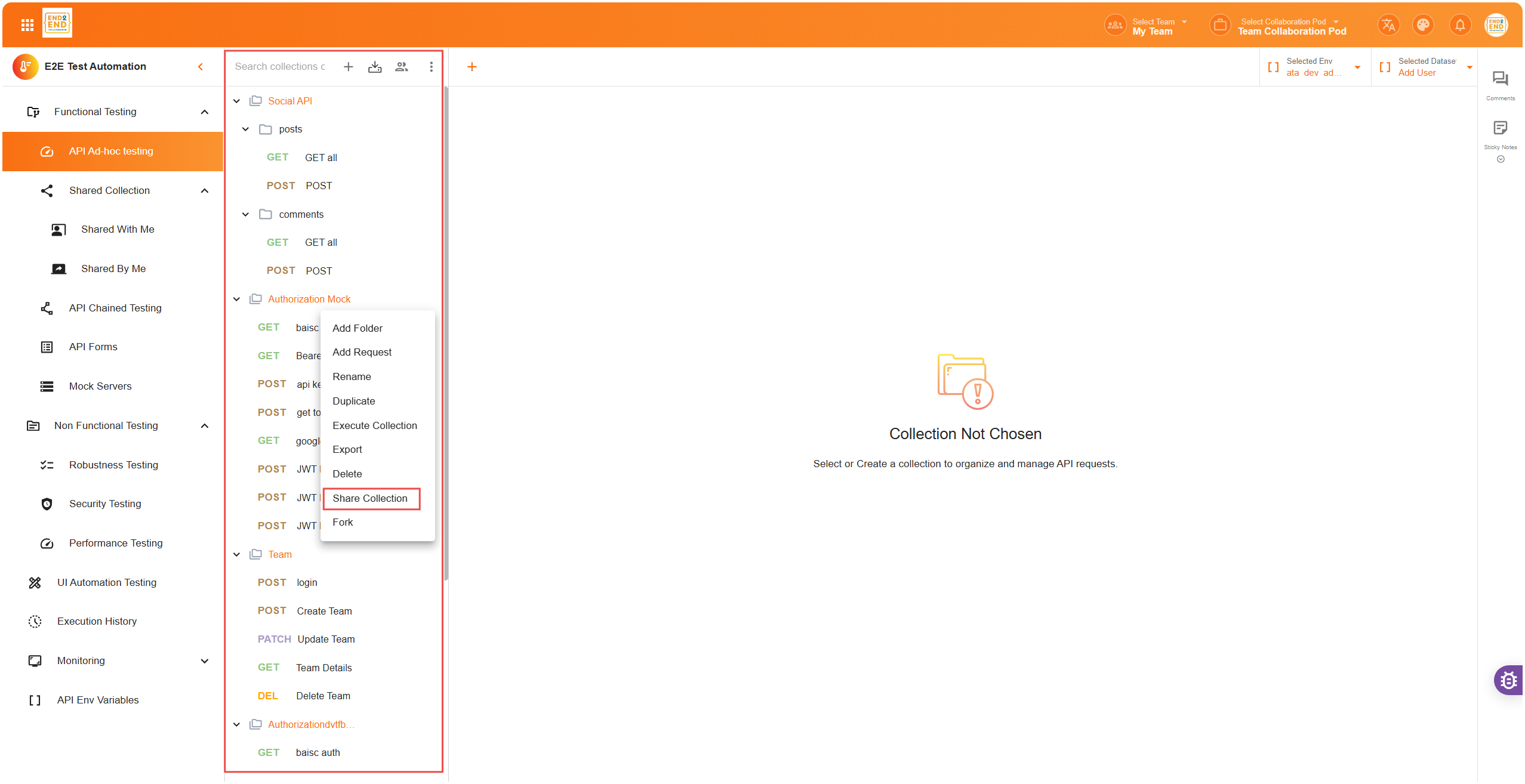
- Navigate to the “API Collections” section in the sidebar
- Select the API collection you wish to share
- Click on the share icon or choose “Share Collection” from the options menu
Organizational Sharing
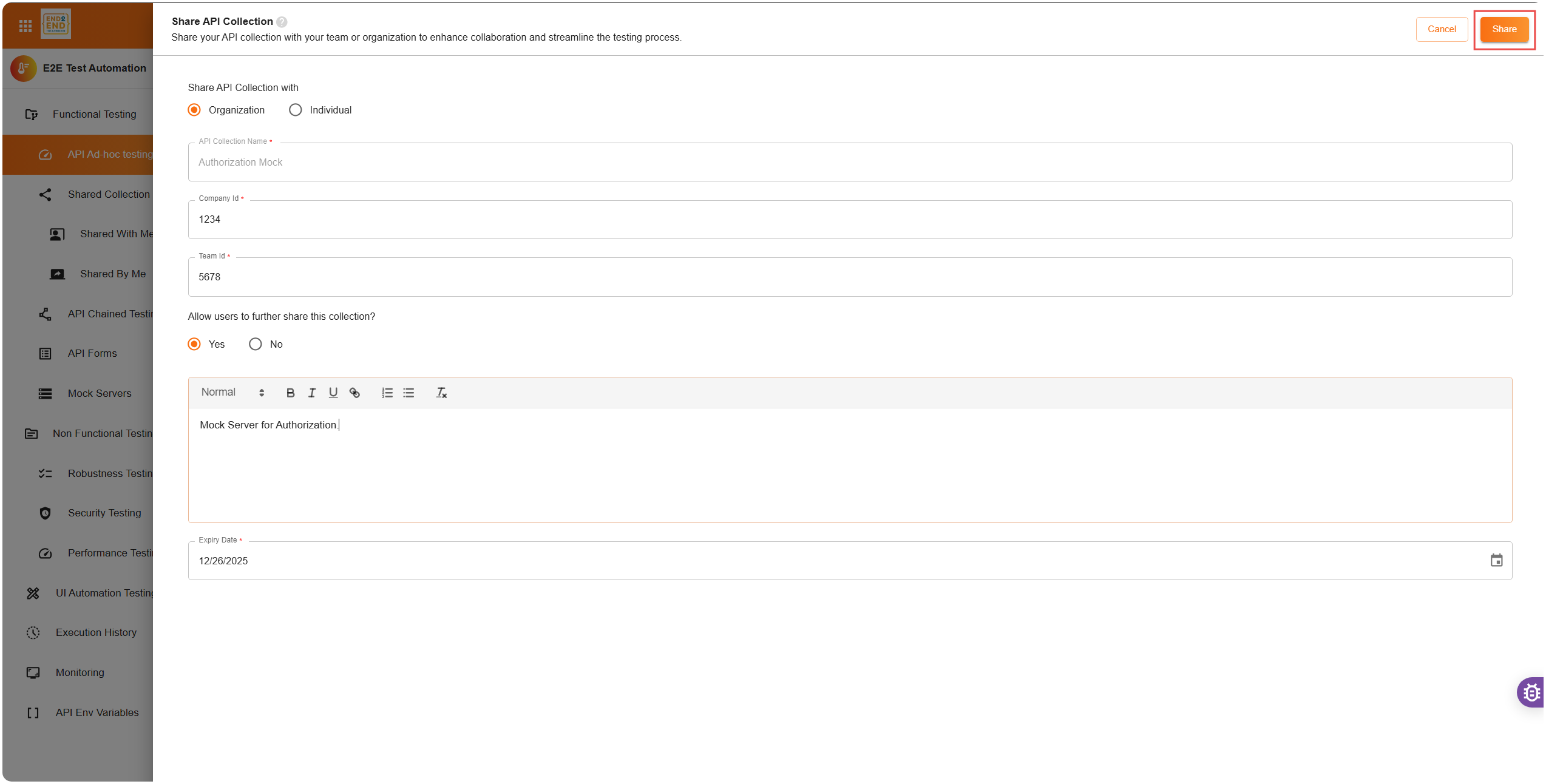
If you want to share the collection with an entire team within your organization, follow these steps:
Steps:
- Select Organization – In the sharing dialog, choose the “Organization” option
- Enter Required Information:
- API Collection Name – This field is auto-filled with the collection name but can be edited
- Company ID – Obtain the Company ID from your company settings under the “Company” tab
- Team ID – This can be found under the “Teams” tab in your company settings
- Allow Further Sharing – Decide whether users can further share this collection with others. This option helps maintain control over sensitive API collections
- Add Description & Set Expiry:
- Description – Provide an optional description to give recipients context about the collection’s use
- Expiry Date – Set an optional expiry date for access to this collection. After this date, access will automatically be revoked
- Share – Once all information is filled out, click “Share”. The collection will now be available to the selected team within your organization
Individual Sharing
If you need to share a collection with specific individuals, follow these steps:
Steps:
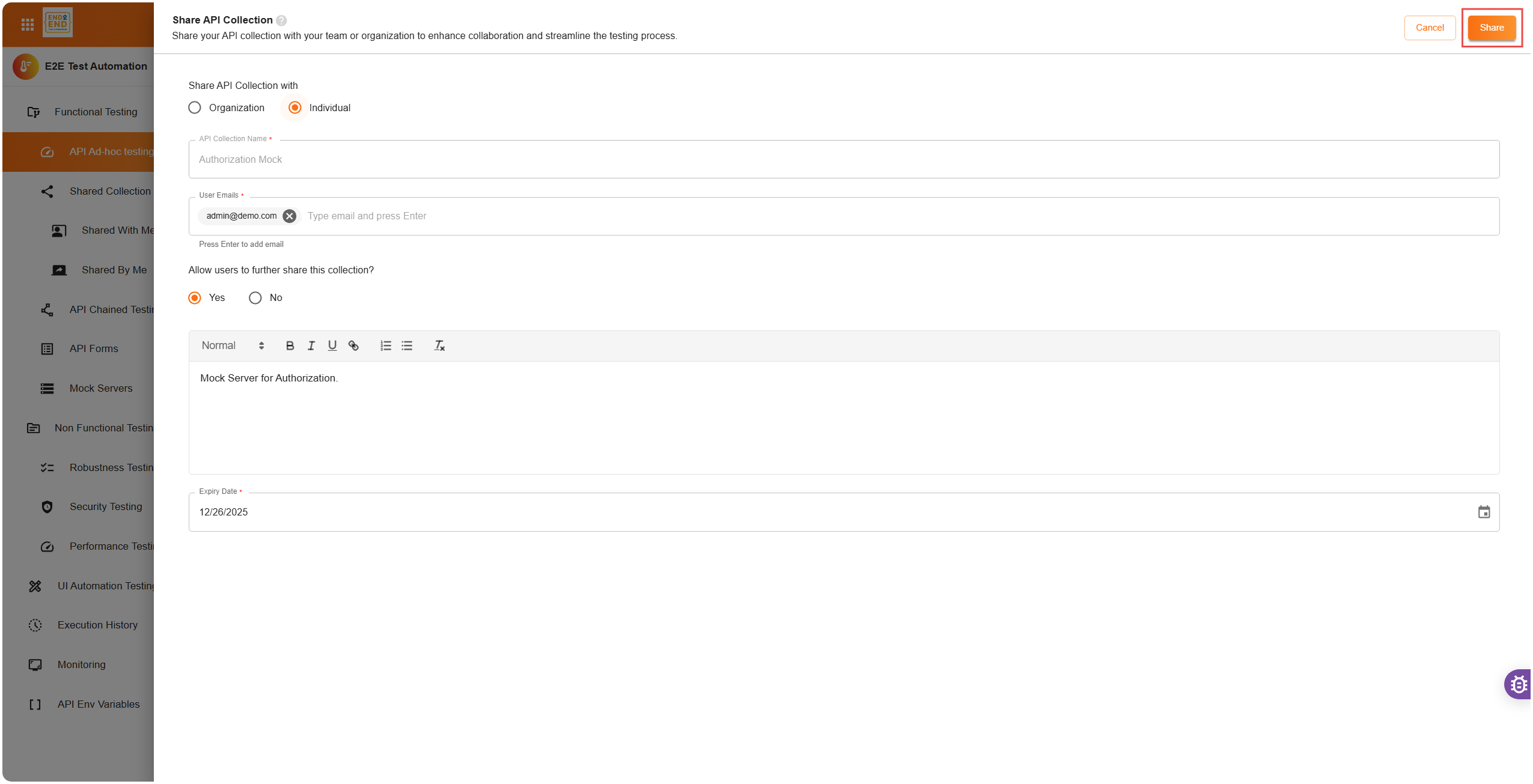
- Select Individual – In the sharing dialog, choose the “Individual” option
- Enter User Emails – Type the email addresses of the users you want to share with, pressing Enter after each email address
- Configure Sharing Options:
- Allow Further Sharing – Decide if recipients can re-share the collection
- Description – Optionally add a description
- Expiry Date – Set an expiry date to limit access to the collection
- Share – Click “Share” to share the collection directly with the specified individuals
👀 Managing Shared Collections
Shared By Me
This section lists all the collections you have shared with others. You can see details like:
- Collection Name – The name of the shared API collection
- Share Type – Indicates if the collection is shared with an Organization/Team or with Individuals
- Shared With – Lists the recipients, either as a team (for organizational sharing) or email addresses (for individual sharing)
- Shared Date – The date when the collection was shared
- Expiry Date – The date when access to the shared collection will expire
Management Options:
- Edit – Modify sharing details or extend the expiry date
- Delete – Remove sharing access for recipients
Shared With Me
This section shows collections that have been shared with you by others. For each shared collection, you can:
- Export – Download the collection to use it elsewhere
- Execute Collection – Run the API requests and associated tests directly
Note: You cannot modify the contents of a shared collection unless you export and import it into your workspace.
🔐 Key Features
Share Permissions
When sharing a collection, you can control whether recipients are allowed to further share it. This helps ensure sensitive data stays secure by limiting redistribution.
Expiry Date
Set an expiry date to automatically revoke access to the collection after a certain period. This is useful for time-limited collaborations.
Description
Providing a description adds context for recipients, explaining the purpose or intended use of the collection, which helps avoid confusion during collaboration.
Tracking Shares
All sharing actions are logged and tracked in the “Shared By Me” and “Shared With Me” sections. This gives you full visibility over how and with whom your collections are shared.
📖 Example Scenarios
Organizational Sharing
A backend team shares their latest API collection with the QA team by selecting the relevant company and team IDs. The collection appears in the QA team’s workspace and can be executed, tested, or exported as needed.
Individual Sharing
An API developer working with external partners shares a testing collection by entering the partners’ email addresses. The partners receive access to the collection without needing to be part of the organization.
✅ Summary
Sharing collections in E2E Test Automation makes collaborative API development and testing efficient and secure. Whether you’re working within your organization or with external partners, E2E Test Automation’s sharing features provide flexible options to control access, maintain security, and streamline your workflow.
Happy collaborating! 🚀