Managing API Requests in E2E Test Automation
This guide will walk you through how to manage API requests using the E2E Test Automation. Whether you’re testing a single endpoint or working with a large set of APIs, this will help you organize and execute your requests with confidence.
🗂️ Step 1: Organize with Folders and Sub-Folders
Collections can get large. Use folders to stay organized.
- Click the three-dot menu next to your collection.
- Select “Add Folder” and name it (e.g., “User APIs”, “Payments”).
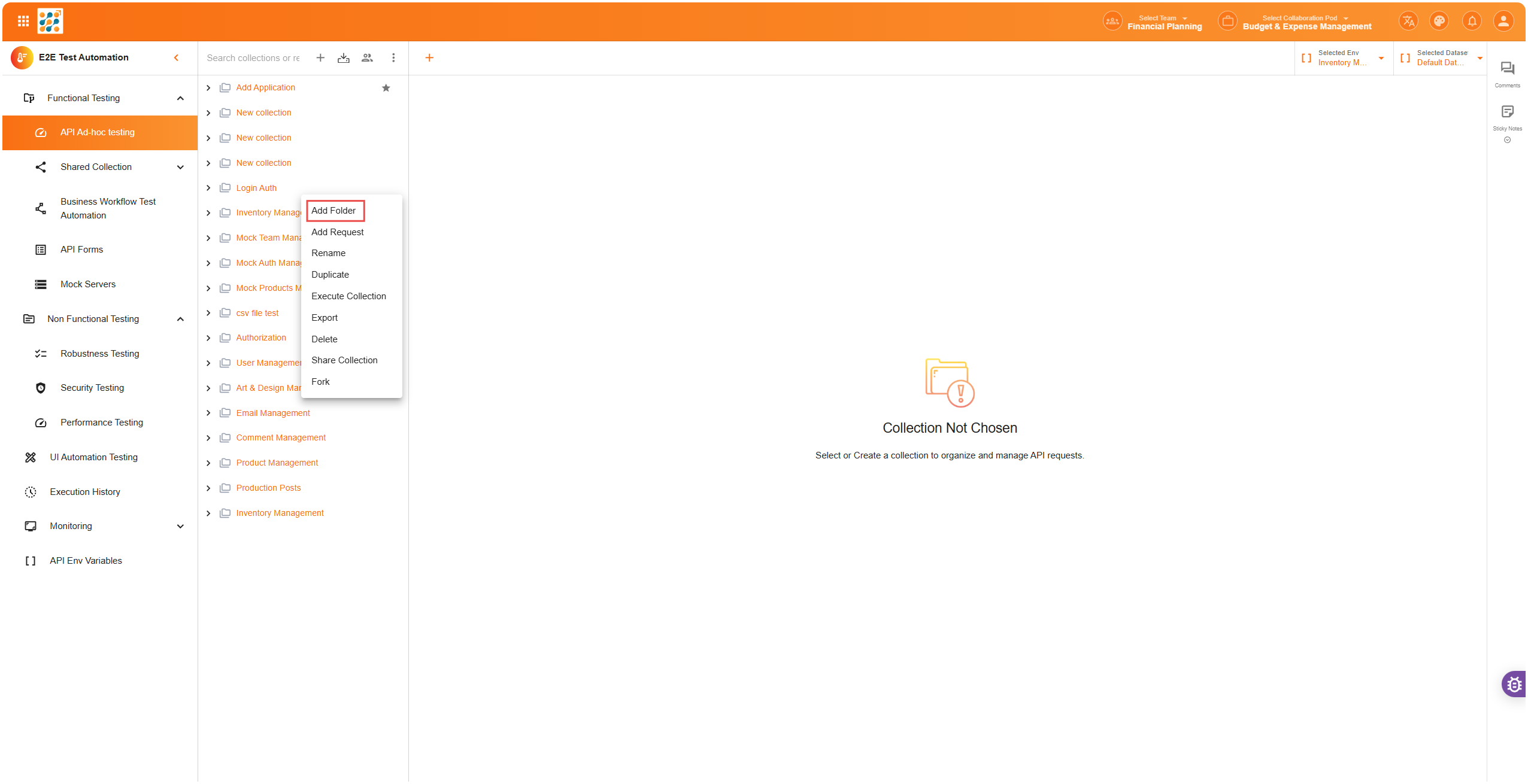
- You can add requests into folders to keep your structure clean.
- Then you can add API requests and configure it. To know more about API request configuration click here
📚 Step 2: Manage the Whole Collection
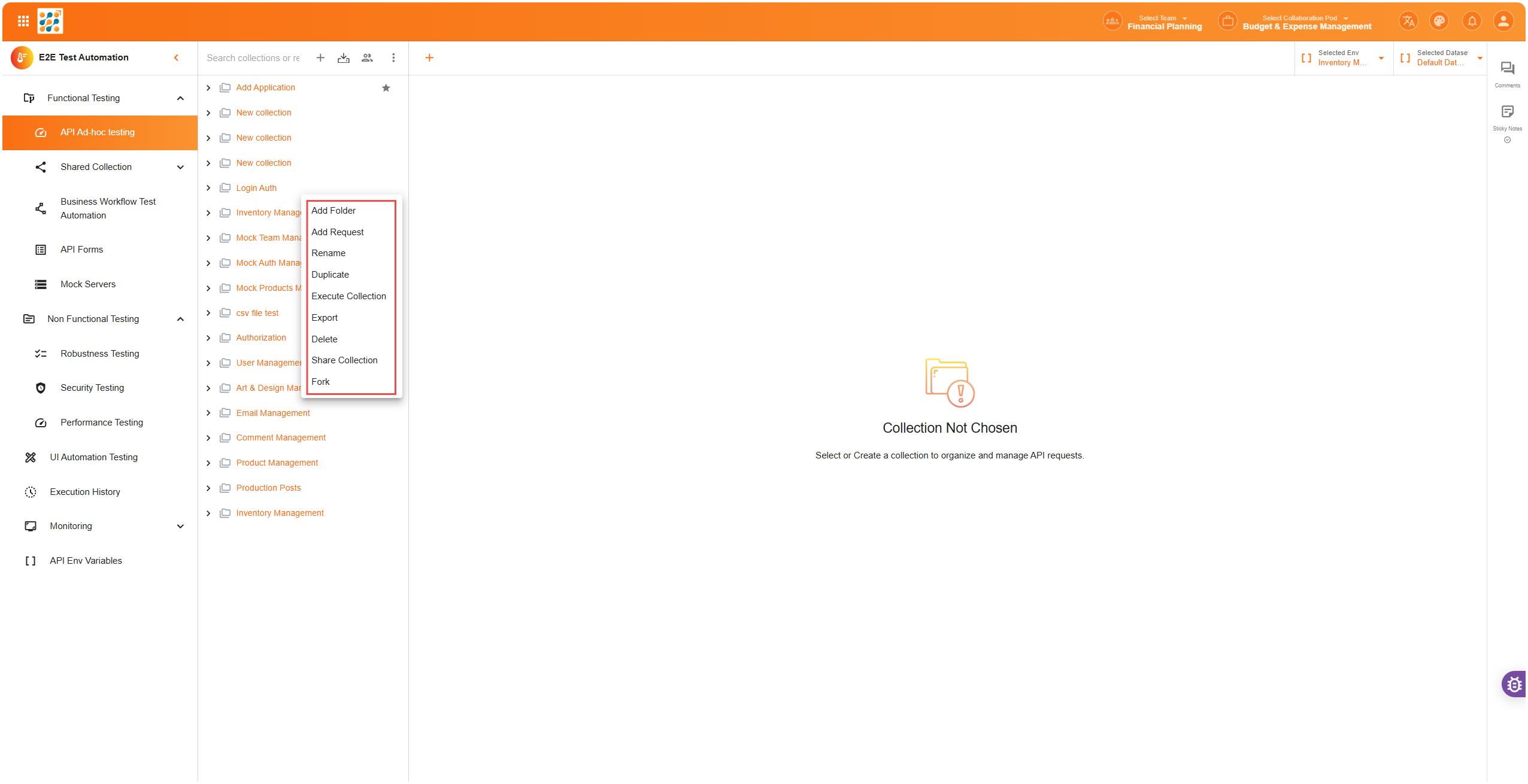
Each collection has its own three-dot menu for advanced management options. These tools help you organize, test, and collaborate more efficiently:
- Add Folder: Create a new folder inside the collection.
- Add Request: Add a new request directly to the collection or a specific folder.
- Rename: Rename the entire collection.
- Duplicate: Make a copy of the collection for testing or reuse.
- Execute Collection: Run all requests sequentially to simulate end-to-end workflows.
- Generate Tests: Automatically create basic test cases (e.g., check response codes, validate fields).
- Export: Download the collection as a JSON file for backup or import into other tools.
- Move to Trash: Soft-delete the collection. It stays recoverable for 30 days.
- Share Collection: Collaborate by sharing with team members or external users.
- Fork: Create a separate editable copy of the collection. Useful when experimenting or creating variations without affecting the original.
📊 Collection Dashboard
Clicking on any collection opens a Dashboard view, which provides visual insights and performance metrics for that collection:
- Total Requests: Shows how many API requests are in the collection.
- Response Code Distribution: Displays a breakdown of response status codes (e.g., 2xx, 4xx, 5xx) in percentage.
- Security Overview: Highlights non-secured APIs (e.g., missing authentication or HTTPS).
- Top Performing APIs: Lists requests with the best performance in terms of response time and stability.
- Execution History: A timeline of recent test runs and outcomes.
This dashboard helps teams monitor test quality, detect issues early, and continuously improve API reliability.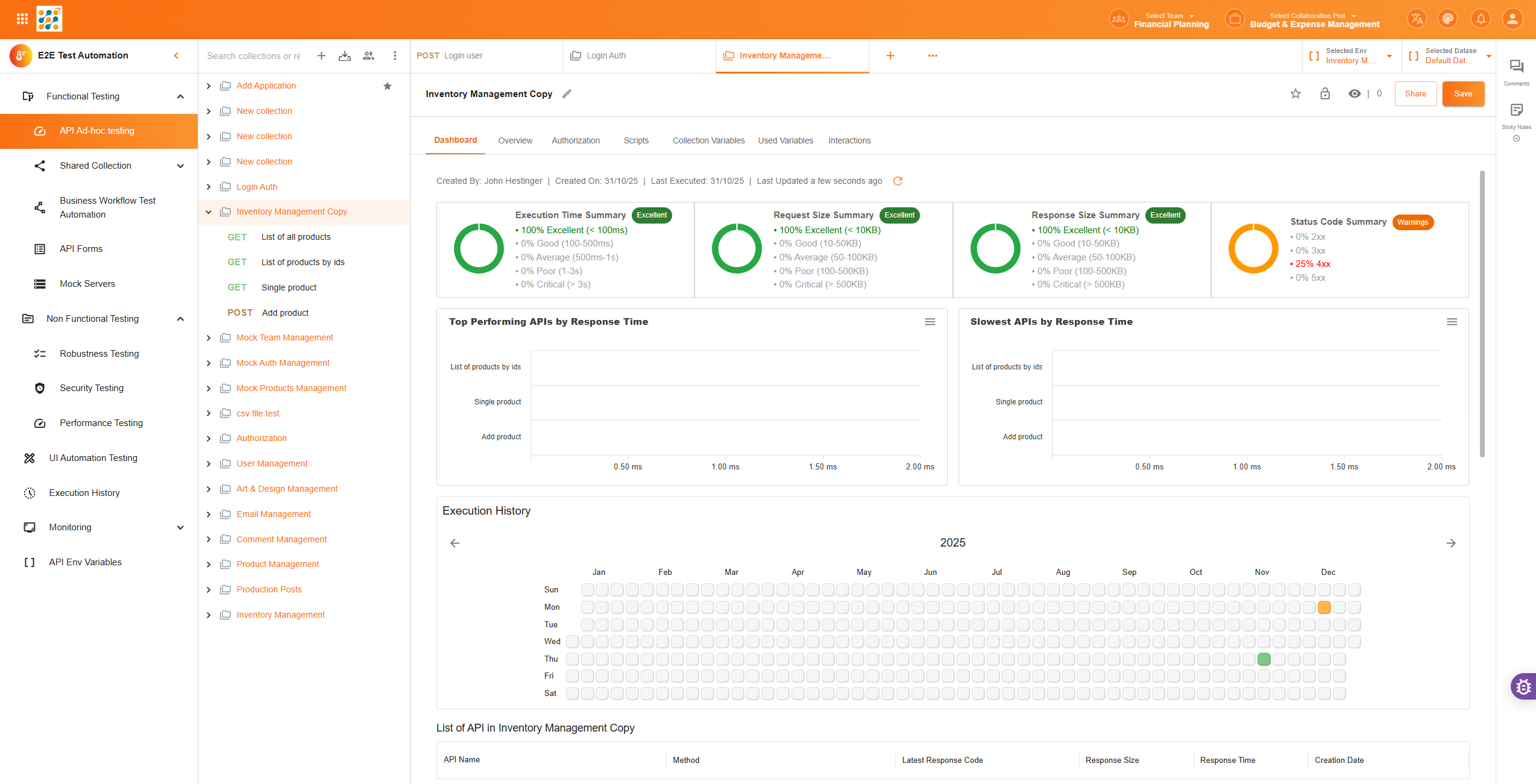
⭐ Step 3: Favorite Collections
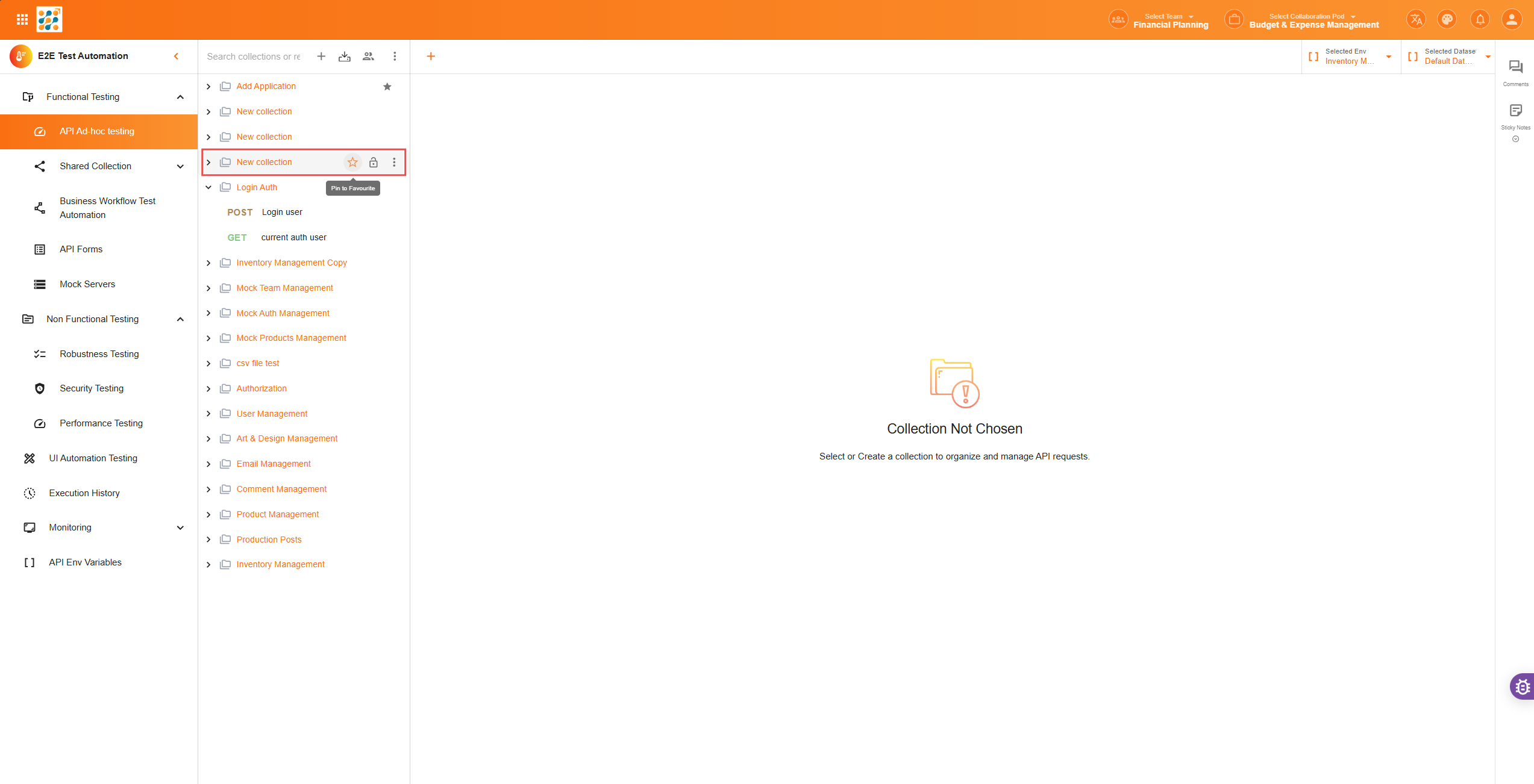
- Click the star icon beside any collection to mark it as a favorite.
- Favorites are pinned to the top of the sidebar.
- This is only visible to you, not your team.
🔄 Step 4: Share & Set Permissions
- Click “Share Collection” from the collection menu.
- Decide who you want to share the collections with. Collections can be shared individually or with other companies.
- Add the company id and team id. Also, set the permission to share it further.
- Set the expiry date, description and click on share to share the collection.
Shared collections are instantly available to selected users.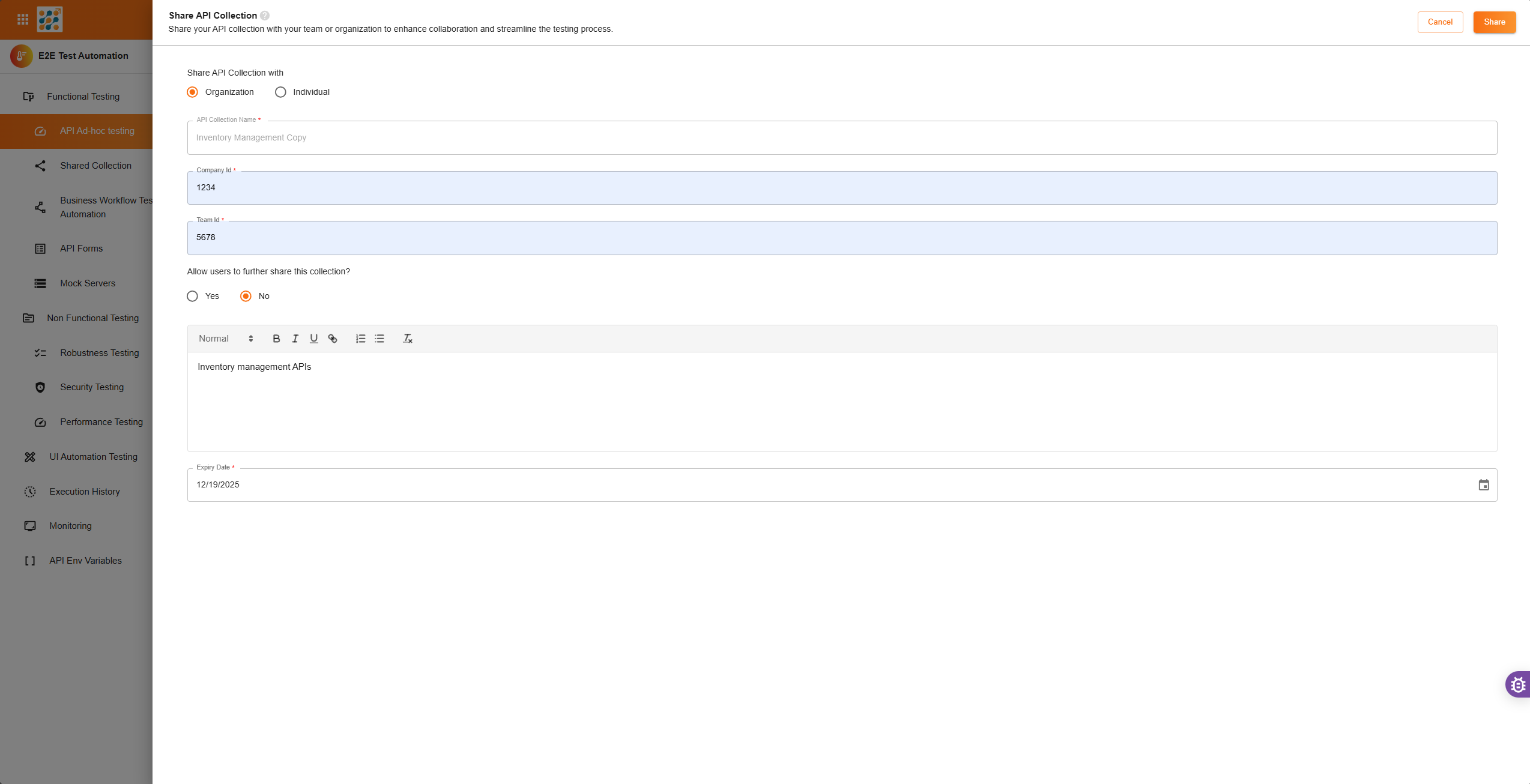
You’re now ready to manage your API requests like a pro with E2E! 🚀