📋 Execute API Forms
The API Forms feature in E2E Test Automation helps you easily manage and execute API requests with dynamic request bodies. With schemas and form views, you can quickly generate structured data and navigate your requests more intuitively. This feature is ideal for simplifying API testing, especially when dealing with complex or large request bodies.
This guide explains how to generate schemas from your API request body and how to use form views for easier interaction and execution of your API requests.
🔧 Working with Schemas
Generating a Schema from an API Request Body
Schemas allow you to define and validate the structure of your API request body. E2E Test Automation can automatically generate a schema from the body you configure in the request.
Steps to Generate a Schema:
- Navigate to the Body Tab – After adding the request body (in JSON, XML, or other formats), go to the Body tab of your API request
- Click on the “Schema” Tab – Next to the Body tab, you’ll find the Schema tab. Click on it
- Click on “Generate Schema” – Once in the Schema tab, click on the “Generate Schema” button. E2E Test Automation will analyze the request body and generate a schema based on its structure
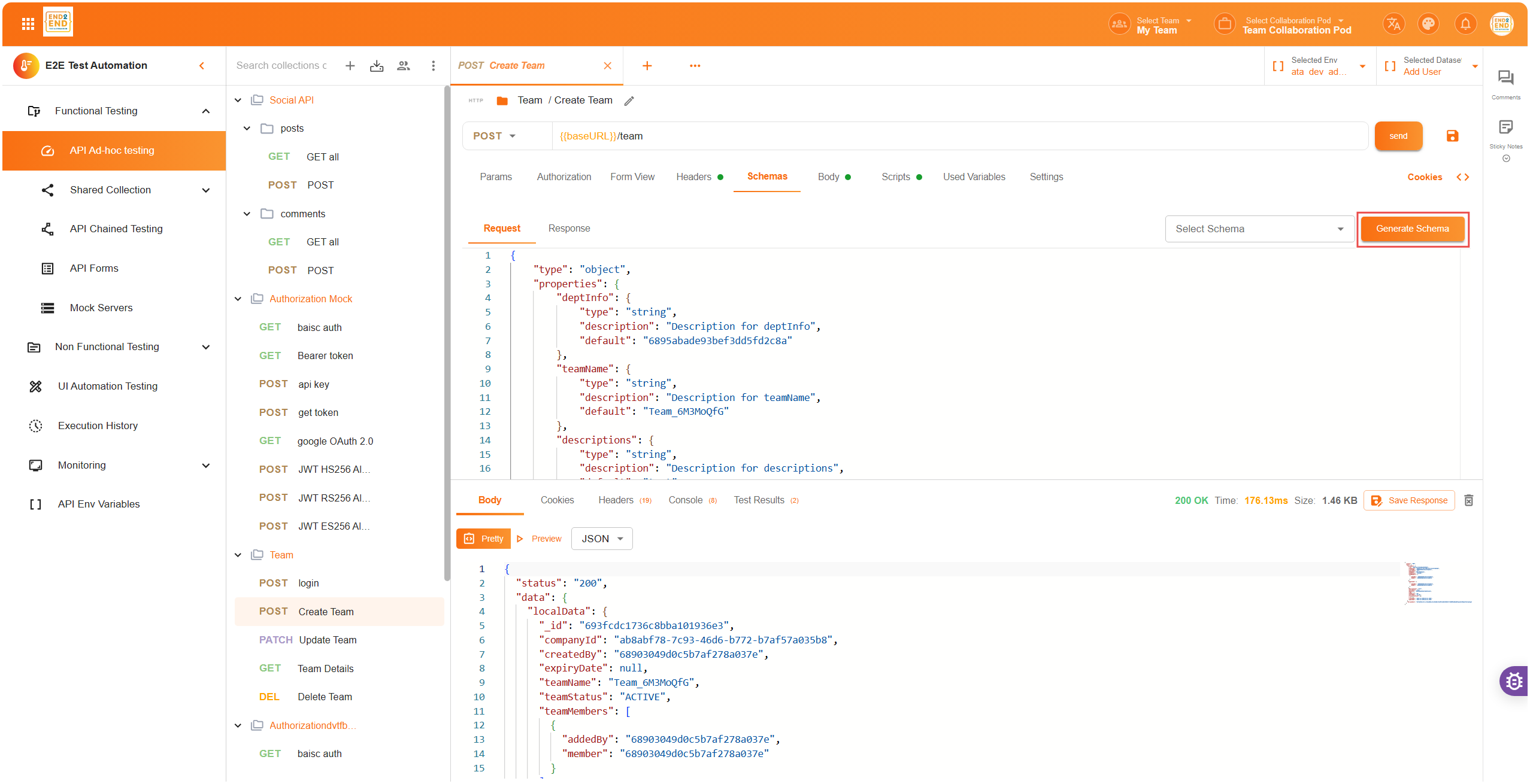
- Review the Generated Schema – E2E Test Automation will automatically create a JSON schema that defines the structure of the request body, including data types, required fields, and possible constraints (e.g., string length, enum values).
- Schema Example: If your request body is:
The generated schema would look something like:
{ "name": "John Doe", "age": 30, "email": "johndoe@example.com" }{ "type": "object", "properties": { "name": { "type": "string" }, "age": { "type": "integer" }, "email": { "type": "string" } }, "required": ["name", "age"] } - Modify Schema (Optional) – After generating the schema, you can manually adjust it as needed. You can add more detailed constraints, descriptions, or other validation rules
📝 Working with Form View
Navigating the Form View
The Form View is a user-friendly interface that renders your API request body as a form layout. This layout makes it easier for users to interact with complex or long request bodies.
Steps to Use Form View:
- Switch to the “Form View” Tab – After generating the schema, click on the “Form View” tab, which is next to the Schema tab
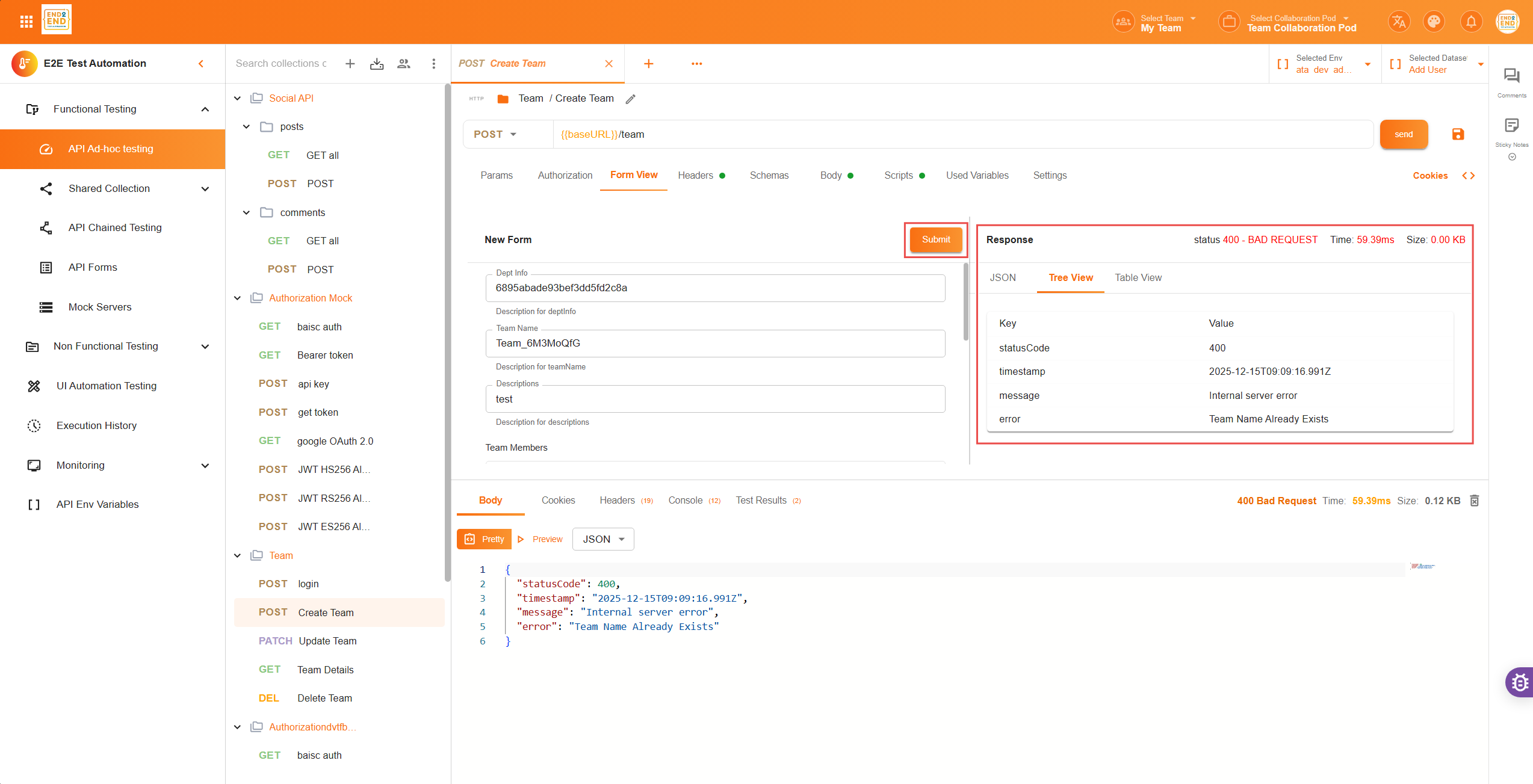
- View the Request Body in Form Layout – The Form View will convert the schema into an interactive form. You will see fields for each property in your request body (e.g.,
name,age,email), allowing you to fill in values directly through the form interface. The form will display the request body’s properties with input fields, dropdowns, checkboxes, or text areas, depending on the type of data defined in the schema:- Text inputs for strings (like
nameoremail) - Number inputs for integers (like
age)
- Text inputs for strings (like
- Fill in the Form – Enter values into the input fields. This data will be automatically converted into the request body format when you submit it
- Submit the Form – Once you’ve filled in the form, click the “Submit” button to save the form submission. The request body is now saved in API Forms, which you can later access and execute
🚀 Saving and Executing API Forms
After submitting the form, your request will be saved under the API Forms tab, where you can view and execute it.
Steps to Execute a Form:
- Go to the API Forms Tab – Once your form is submitted, navigate to the API Forms tab in the sidebar
- View Your Submissions – In the API Forms tab, you will see a list of all the form submissions you’ve made. Each submission corresponds to a saved API request, which includes the request body filled out through the form
- Select the Form to Execute – Click on the specific form you want to execute from the list
- Execute the Request – After selecting the form, you can either execute it directly from the API Forms tab or go back to the API Ad-hoc Testing and run it from there
- Tree View/JSON View – The API Forms section allows you to switch between a tree view or JSON view to navigate through your request body. This is particularly useful when working with complex data structures or large API requests
✅ Summary
The Schemas and Forms feature in E2E Test Automation helps you manage and interact with complex API request bodies efficiently. By generating schemas and using form views, you can easily navigate, fill out, and execute your API requests. This functionality simplifies API testing, improves accuracy, and reduces manual errors when working with large or dynamic data.
Happy testing! 🚀